Cleaning up a Logo with Math and a Little AI
I work for a company called Voxie. I’ve been there for a while, and the logo has always bothered me. I’m a UI designer so logo design isn’t exactly in my wheelhouse, but I know enough that I felt like I could make some improvements.
I started out in Figma but kept running into issues. A lot of the difficulty came from creating specific angles by hand and trying to maintain them while adjusting dimensions, strokes and other details. It occurred to me that this was perfectly suited to drawing in code. I had Claude turn the geometry into formulas so I could construct the mark according to a few rules, then tweak the values until I liked the result.
What Bothered Me About the Original
Before getting into the geometry, let’s quickly cover what I wanted to fix.
- Misaligned arms. The two arms didn’t line up cleanly around a shared bottom vertex.
- A weird sharp point. The left arm ended in a sharp corner on an otherwise rounded mark. It felt like an accident rather than a detail that belonged there.
- A gradient. Ever try getting a gradient embroidered or turned into a neon sign? It doesn’t work. I wanted a mark that could be reproduced consistently across mediums.
- A dot that felt too light. The dot wasn’t optically scaled to match the main arm’s weight. It needed a little extra size to feel balanced beside the longer white stroke.
The Math
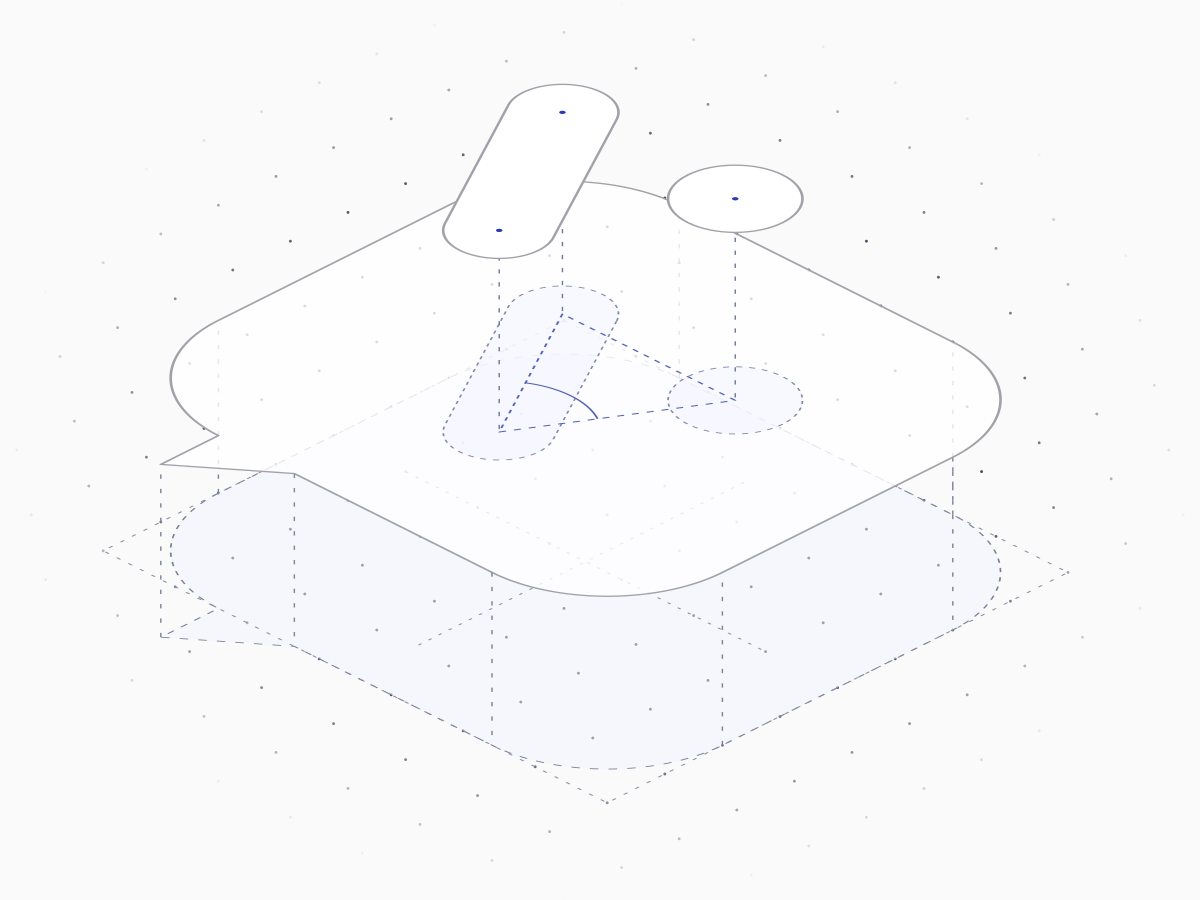
The mark is built on a V: one bottom vertex, two arms of equal length, and the same angle on either side. The left arm gets a stroke applied. The top of the right arm tells us where to put the dot.
We need to calculate how far the arms reach sideways and upward. Each arm forms the hypotenuse of a right triangle. Sine gives us the sideways distance; cosine gives us the upward distance. Multiplying each by the arm length turns those proportions into offsets from the bottom vertex:
const radians = angle * Math.PI / 180;
const dx = length * Math.sin(radians);
const dy = length * Math.cos(radians);

const left = { x: vertex.x - dx, y: vertex.y - dy };
const right = { x: vertex.x + dx, y: vertex.y - dy };
The two endpoints share the same upward offset, dy. For the sideways offset, dx, we subtract to go left and add to go right. SVG’s y coordinates increase downward, so moving either endpoint upward means subtracting from the vertex’s y coordinate. Both endpoints now come from the same rule. Changing the angle or arm length keeps the V symmetrical, and the dot stays anchored to the end of its imaginary arm.
Below, you can play with the parameters yourself and compare different variations.

The interactive geometry controls require JavaScript. The current values are 30°, length 12, stroke 5.5, and a dot 1.2 times the stroke width.
Equal Numbers Don’t Always Look Even
If everything is mathematically equal, we run into some problems. Elements look squished, misaligned, and out of place. To balance everything out, we need to do what’s called optical alignment which is just visually adjusting things until they look right.
The dot was our first problem. The arm takes up much more visual weight so when they have the same width, the dot ends up looking much smaller. The circle is scaled up to compensate. As the dot weight is increases though, it’s edges extend so that they no longer line up with the arm. A little of this is necessary because if they exactly line up, the dot will look lower than the arm. You can actually see this same thing in typography where the letter O rises slightly higher than other characters. I ended up applying a very slight offset although it’s probably fine without.
Next up is the vertical position of the V. The wider top takes up more visual weight so when it’s mathematically centered, it looks too high. To counter balance this, the V shifts down slightly.
Finally, the blue chat bubble has an issue where it looks too tall when it’s width exactly matched its height. To make it visually look square, the width was slightly increases.
A Better Way to Make Small Changes
The useful part of working with Claude was getting the drawing into a form I could easily adjust. Instead of manually drawing out angles, offsets and weights, I was able to rely on precise math handled by the computer.
I still had to decide what felt balanced. But once those decisions were expressed as values, I could change them consistently, compare them and keep the result in the component itself in case it ever needed to be adjusted.
View All Notes